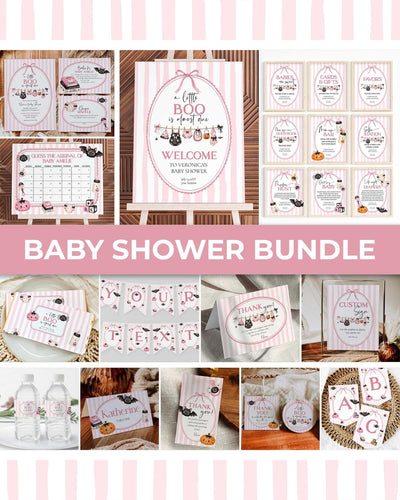
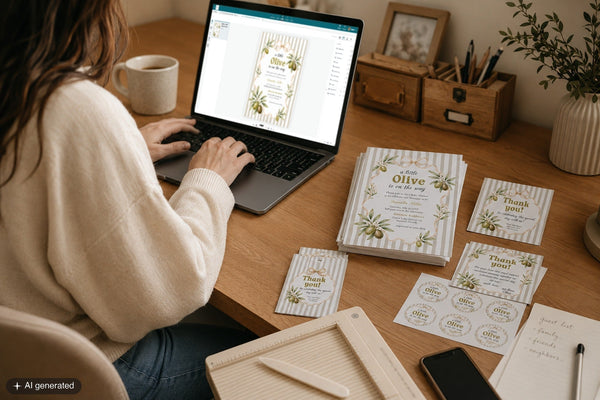
Some templates are a single page. Others come as several pages in one file: a sheet of place cards, a set of table numbers, or an invitation with a printed back. There's a small knack to moving between those pages, editing each one, and getting them all out together. Once you get it, it's quick.
Here's how I'd handle a multi-page template from start to finish.
What you'll need
- Your multi-page template, open in Corjl
- A computer or phone with a browser
How to edit a multi-page template, step by step
Move between the pages with the arrows
Once you're logged in and editing in Corjl, look for the little arrows at the bottom of the page. Click an arrow to move to the next page, or back to the previous one. That's how you travel through every page in your template, and there's no separate menu to hunt for.

Edit every page
Work through the pages one at a time with those arrows, editing the text on each. For a double-sided invitation that's the front and then the back; for place cards or table numbers it's each card in turn. Going page by page is how you make sure nothing gets missed. It's easy to personalise the first page and forget there's more behind it.
Need more pages? Duplicate one
For things like place cards or table numbers, you'll often want more copies than the template comes with. Duplicate a finished page, then change the name or number on the copy. Because you're duplicating, every new page keeps the same fonts and spacing. You can delete any pages you don't need, too.
Download all pages: this is the one to get right
When you download, make sure all pages are selected. This is the most common slip with multi-page templates: people download with only the first page ticked and end up missing the rest. Tick them all, and your whole set comes down together. Full download guide here.

Print the set
Print straight from Corjl with Corjl Prints (the built-in print service), send the file to Prints of Love or a local shop, or print at home on cardstock at 100% scale. Smaller pieces like place cards may print several to a sheet, so cut along the guides.
The golden rule: edit every page, then download all pages. If you only ever remember one thing about multi-page templates, make it that. It saves the "where are the rest of my cards?" panic later.
Multi-page questions, answered
Only one page downloaded, what went wrong?
The other pages weren't selected at download. Open the download options again, select all pages, and download once more.
How do I add more place cards or table numbers?
Duplicate a finished page, then change the name or number on the copy. Repeat until you have one for every guest or table, and they'll all match automatically. More on place cards here.
Can I delete pages I don't need?
Yes. Remove any page you're not using before you download, so you're only printing what you need.
Will each page print on its own sheet?
It depends on the size. Full-page pieces print one per sheet; smaller items like place cards or tags often fit several to a page, so you cut them apart after printing.
How many times can I download the set?
Up to 15 times within your 180-day window. That's plenty for a full suite, even with a re-edit or two. More on downloading here.
Edit every page, duplicate where you need more, download the lot, and your whole matching set arrives in one tidy file.