

Sticker, label, and tag templates are the tiny pieces that make a party table feel pulled together. They go on favor bags, jars, bottles, treat boxes, envelopes, place settings, gift baskets, and all the little details people notice when everything matches.
Each marryful sticker, label, and tag template comes with three matching shapes: round, square, and rectangular. You can print them as stickers on sticker paper, use them as labels on jars or packaging, or print them on cardstock, punch a hole, and tie them on with ribbon.
Here's how to edit your template in Corjl, download the right file, and print it without fighting with label-sheet spacing.
What you'll need
- Your sticker, label, or tag template
- Sticker paper, cardstock, or pre-cut label sheets
- Scissors, a paper trimmer, or a cutting machine
- A hole punch and ribbon if you're making tags
What sizes are the sticker, label, and tag templates?
The marryful sticker, label, and tag templates come in three sizes, so you can choose the shape that fits your favor, gift, jar, bottle, or packaging.
| Template | Size | Best use |
|---|---|---|
| Custom round tag | 2.5 x 2.5 inches | Round stickers, envelope seals, jars, lids, favor bags |
| Custom square tag | 2.5 x 2.5 inches | Gift tags, treat boxes, favor labels, flat packaging |
| Custom rectangular tag | 2 x 3.5 inches | Bottle labels, food labels, candle labels, longer names or messages |
How do I edit my sticker, label, or tag template in Corjl?
Open your template in Corjl, click the text you want to change, and type your own wording. Corjl runs in your browser, so there's no software to download.
You can edit the wording, font style, font size, colours, and some design elements, depending on the template. The layout stays in place, which is the nice part. You can personalize the design without starting from a blank page or accidentally pulling the whole thing apart.
If you want the full editing walkthrough, start here: How to Edit Your Template in Corjl.
How should I download the template?
Download your finished design from Corjl as a JPG or PDF.
Choose PDF if you're printing on full-sheet sticker paper or cardstock and cutting the designs yourself. Choose JPG if you want to place one finished design into a pre-cut label sheet template later, like an Avery template.
That JPG tip matters. If you're using Avery or another pre-cut label sheet, download one design at its original size, then upload that one design into the matching Avery sheet template.
For the full file-format walkthrough, see How to Download Your Template for Home or Professional Printing.
Why don't the labels line up when I download multiple at once?
When you download multiple labels from Corjl at once, the spacing is made for a general printable sheet, not for every pre-cut sticker paper brand.
Pre-cut label sheets have exact margins and spacing. Avery round labels, Avery square labels, and Avery rectangle labels each have their own layout. Other brands do too. Even a tiny difference in spacing can make the print drift off the sticker cuts.
So if you're printing on pre-cut sticker paper, don't use a full sheet downloaded from Corjl and expect it to match the Avery sheet.
The best Avery method: edit one sticker, label, or tag in Corjl, download that one design at the original size as a JPG, then upload it into the Avery template that matches your exact label sheet.
How do I use an Avery template?
Use Avery's own template finder so the spacing matches your exact sheet. Go to avery.com/templates, then look on your Avery packaging for the exact product number and size.
- Edit one design in Corjl. Finish the wording, colours, and details for one sticker, label, or tag. Check names and dates before downloading.
- Download one JPG at the original size. Choose JPG when you plan to place the design into an Avery sheet template. Download one finished design, not a full sheet of repeated designs.
- Find your Avery template. Go to avery.com/templates and enter the product number from your packaging. Match the template to the exact shape and size on the package.
- Upload your JPG into Avery. Place the JPG into one label space, then use Avery's option to repeat or apply the design across the sheet.
- Print a test page first. Print on plain paper before using the sticker sheet. Hold the test page behind the Avery sheet to check that the design lands inside the cuts.
- Print at 100% or Actual size. When the test looks right, print on the actual label sheet. Choose 100% or Actual size, not Fit to page.
How do I print them as stickers or labels?
Print on full-sheet sticker paper if you want to cut the shapes yourself. This is the most flexible option because you can print the round, square, and rectangular designs without needing the spacing to match a pre-cut sheet.
Matte sticker paper gives a soft, clean finish and is the easiest starting point for most party projects. Glossy sticker paper makes colours look brighter, but it can show fingerprints and needs more drying time. Weatherproof printable vinyl is better for items that may be handled more, like bottles, jars, candles, or product packaging.
Before printing the whole batch, print one test page on plain paper. Then print at 100% or Actual size. Don't choose Fit to page, because it can shrink the design and change the size.
For more general printing help, see Your Ultimate Guide to Printing Your Templates.
How do I print them as cardstock tags?
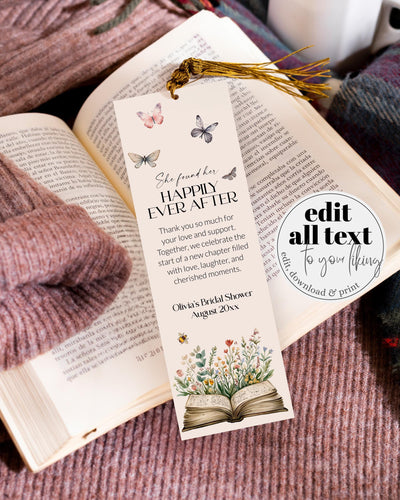
Print your template on cardstock, cut out the shape, punch a hole near the top, and tie it with ribbon or twine.
For most tags, 80 lb cardstock is a good starting point. It feels sturdier than normal paper but still feeds through many home printers. If you want a thicker tag, use 100 lb cardstock. If you love the look of very firm tags, 110 lb can be beautiful, but check your printer first because not every home printer likes heavy paper.
For the hole, a small 1/8 inch punch looks delicate and works well with thin ribbon or twine. A 1/4 inch punch is better if you want to use a wider ribbon.

AI-generated image, shown for inspiration.
What paper should I use?
For stickers and labels, I'd start with matte full-sheet sticker paper. It's flexible, easy to cut, and works for favor bags, jars, envelopes, boxes, and flat packaging.
For labels that may be handled more, use weatherproof matte sticker paper or printable vinyl. It has a sturdier feel and holds up better on bottles, jars, candles, and bath or body favors.
For tags, use white, ivory, or soft neutral cardstock. Smooth cardstock prints the cleanest. Lightly textured cardstock can look lovely for weddings, bridal showers, and softer baby shower themes, but very textured paper can make small text less crisp.
What ribbon looks nice with tags?
Thin satin ribbon is the easiest pretty option for most tags. For small tags, 1/8 inch ribbon looks delicate. For larger tags, 1/4 inch satin ribbon feels more polished.
Good ribbon colours for marryful-style tags include ivory, champagne, dusty rose, blush, sage green, dusty blue, soft gold, black, and natural cotton twine.
Silk ribbon is lovely for wedding favors, bridal shower gifts, and anything you want to feel a little more special. Satin ribbon is usually more budget-friendly and still looks finished.
Helpful supplies
This section includes affiliate links. As an Amazon Associate, marryful earns a small commission from qualifying purchases, at no extra cost to you.
- Matte full-sheet sticker paper: the easiest option if you want to print and cut the shapes yourself.
- Weatherproof printable vinyl sticker paper: good for jars, bottles, candles, and labels that may be handled more.
- Avery pre-cut circle labels, 2.5 x 2.5 inches: use with the round tag template.
- Avery pre-cut square labels, 2.5 x 2.5 inches: use with the square tag template.
- Avery pre-cut rectangle labels, 2 x 3.5 inches: use with the rectangular tag template.
- White or ivory cardstock, 80 lb to 100 lb: best for printed tags you'll cut and tie on.
- Small hole punch, 1/8 inch or 1/4 inch: use 1/8 inch for delicate ribbon, 1/4 inch for wider ribbon.
- Thin satin ribbon, 1/8 inch or 1/4 inch: an easy finishing touch for favor tags and gifts.
- Natural cotton twine: nice for garden, farmers market, rustic, bookish, or relaxed party themes.
Sticker, label, and tag questions, answered
Can I print these on Avery labels?
Yes, but use Avery's own sheet template. Download one finished design from Corjl at its original size, preferably as a JPG, then upload that design into the Avery template for your exact product number.
Where do I find the right Avery template?
Go to avery.com/templates and enter the product number from your Avery packaging. The package is the source of truth because Avery makes many label sheets with similar sizes but different spacing.
Should I download JPG or PDF?
Download PDF if you're printing on full-sheet sticker paper or cardstock and cutting the shapes yourself. Download JPG if you're placing one design into a pre-cut sheet template, like Avery.
Can I print several designs on one page from Corjl?
Yes, if you're printing on full-sheet sticker paper or cardstock and cutting them yourself. If you're printing on pre-cut label sheets, use the label brand's own template so the spacing lines up.
What cardstock thickness is best for tags?
Use 80 lb cardstock for most tags, 100 lb for a sturdier feel, and 110 lb only if your printer can handle heavier paper.
What printer setting should I use?
Print at 100% or Actual size. Avoid Fit to page, because it can resize the design and make stickers, labels, or tags print smaller than expected.
Can I use the same design as a sticker and a tag?
Yes. That's the whole point of the set. Print it on sticker paper if you want it to stick, or print it on cardstock, punch a hole, and tie it on with ribbon.
Edit in Corjl, download the right format, and choose the paper based on how you want to use it. Sticker paper if it needs to stick. Cardstock and ribbon if it needs to tie on. Avery's own template if you're printing on pre-cut sheets.


![Woman receiving her printed templates from the postman [AI]](http://marryful.org/cdn/shop/articles/Prints_of_love_package_b0f84256-c190-40d0-8d2f-98a18707b81f.jpg?v=1780662238&width=1)
![Beautiful DIY Envelope Liners with a Swan Theme [AI]](http://marryful.org/cdn/shop/articles/Envelope_Liner_7c7b979e-9cbe-45ec-bc2d-4f6825b3f4a2.jpg?v=1780662091&width=1)

![Woman editing her template on a laptop in Corjl. [AI]](http://marryful.org/cdn/shop/articles/edit_in_Corjl_f45d2de7-a487-4400-bac0-f65744c5e777.jpg?v=1780662260&width=1)

