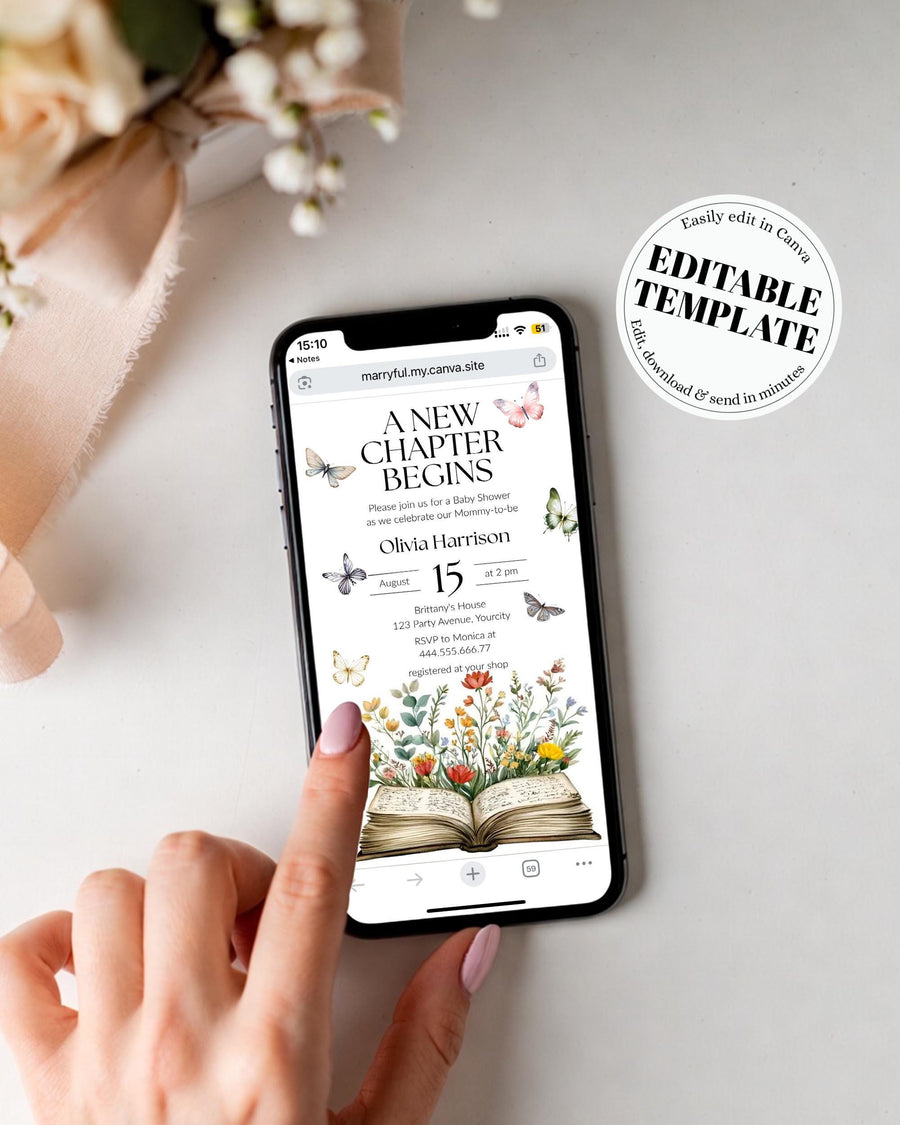
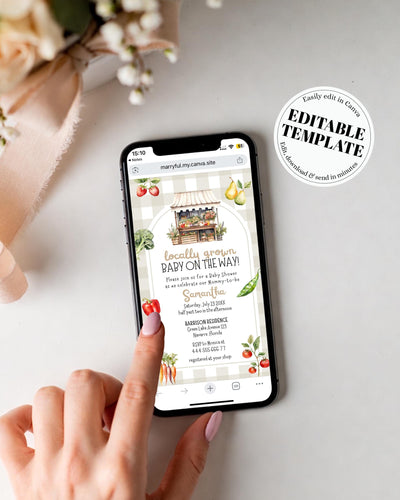
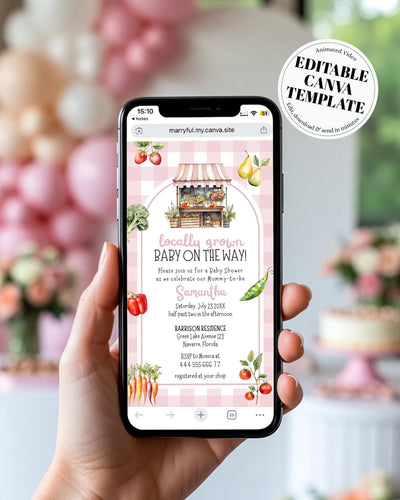
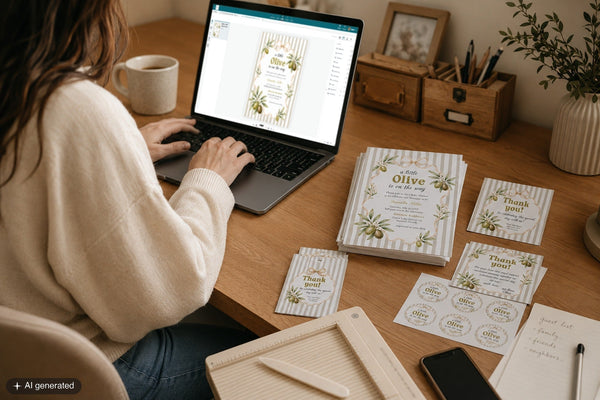
You buy a template, open the file, and instead of the design you were expecting you find a PDF with a link in it. Don't worry, that's how a Canva template is meant to arrive. The link is the key to your design. Once you've opened it and saved your own copy, the editing is the easy bit.
Here's how I'll take you from "what do I do with this PDF?" to a finished design you love.
What you'll need
- Your order, bought on Etsy or on marryful.org
- A web browser (not the Etsy app, more on that below)
- A free Canva account (no Canva Pro needed)
How to open and edit your Canva template, step by step
Download your PDF in a browser
If you bought on Etsy, log in through a web browser, not the Etsy app, then go to Your account → Purchases & reviews, find your order, and download the attached PDF. If you bought on marryful.org, download it from your order confirmation email or your account. The PDF is small. It's only there to hold your template link.
Open the PDF and copy the full Canva link
Inside the PDF you'll find your Canva template link. Copy the whole thing, from https:// right through to the end. A half-copied link won't open. If the link is clickable, you can tap it instead.
Paste it into your browser and sign in to Canva
Drop the link into your browser's address bar and press enter. Sign in to your Canva account, or create one for free if you don't have it yet. A free account does everything you need here.
Click "Use template" to save your own copy
This is the step that matters most. Clicking "Use template" creates your own private, editable copy and saves it to your Canva account, so the original stays untouched and you can come back to your version anytime.
Make it yours
Now the fun part. You can change the wording, font, text colour, size and placement, and the background colour. To swap in your own photo, click the placeholder image, choose Replace, and upload yours. A few graphics are locked for colour so the design stays balanced, and the page size and orientation are fixed. Every size we offer is listed in the product description.
Download or share it
How you finish depends on the template. Print designs download as PDF Print, JPG or PNG, so you can print at home, use a print service, or send them digitally.
Edit on a computer if you can. Canva works on a phone, but it's fiddly on a small screen. For the smoothest experience, use a computer with Google Chrome. Safari, Firefox and Edge occasionally misbehave with templates.
Canva template questions, answered
Do I need Canva Pro?
No. Everything works on a free Canva account.
Why do I have to use a browser instead of the Etsy app?
Etsy doesn't allow file downloads through its app, so the PDF with your link won't open there. Logging in through a web browser fixes it.
Can I edit on my phone?
You can, but it's limited and harder to get precise. A computer with Chrome gives you the most control.
Can I change the size or orientation?
No, the size and orientation are set. You'll find every size we offer in the product description so you can pick the right one before you buy.
Can I add my own photo?
Yes. Click the placeholder image, choose Replace, and upload your own photo in its place.
Open the link, save your own copy, and you've got a design that's yours to change as much as you like.